Home
Blog
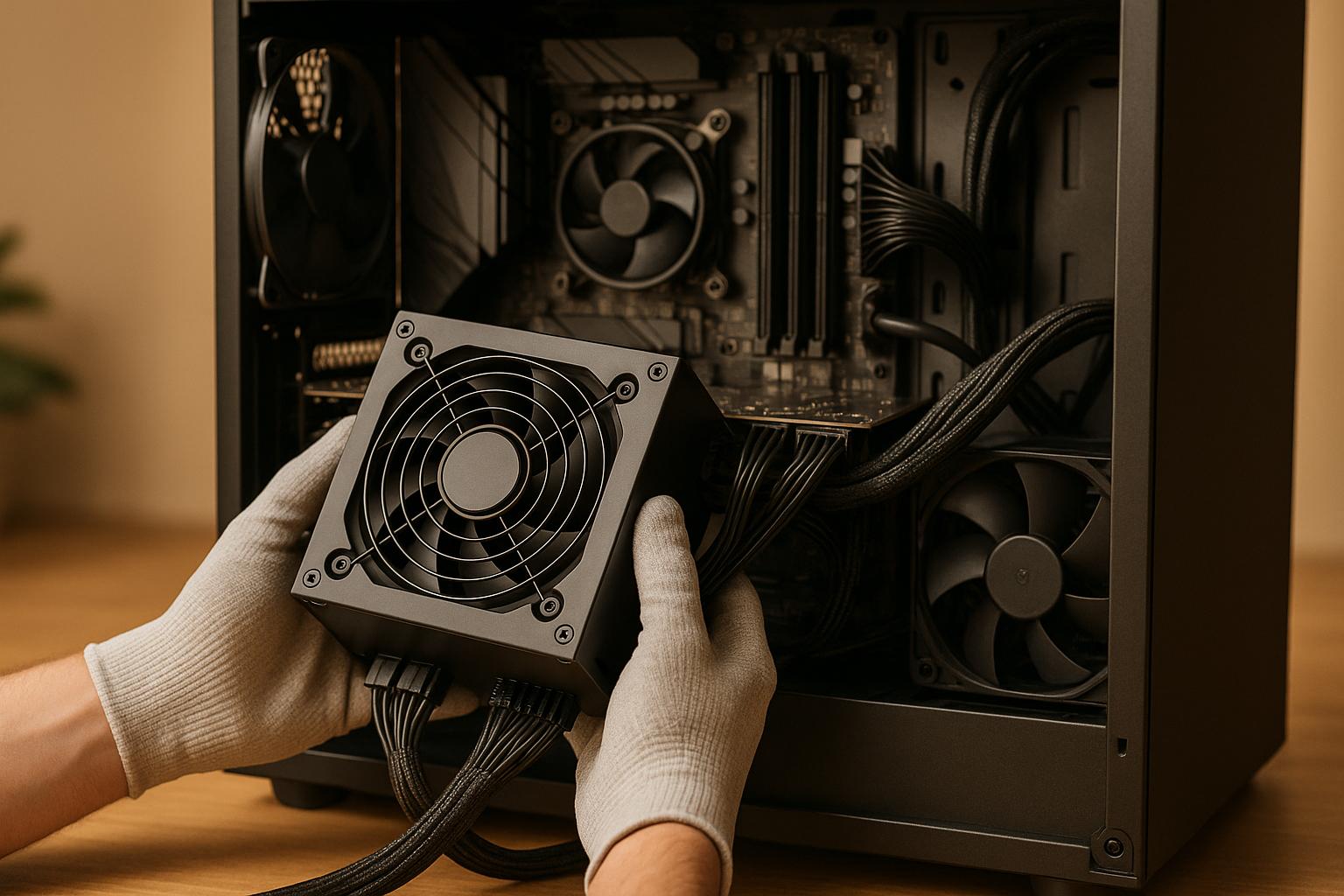
How to Diagnose a Failing PSU

by Techkooks
Published:
Your computer's Power Supply Unit (PSU) is critical to its operation, converting AC power from your wall outlet into the DC power your hardware needs. When a PSU starts to fail, it can cause random shutdowns, system crashes, or even permanent hardware damage. Here’s how to identify and address PSU issues:
Physical Signs: Burning smells, unusual noises (buzzing, clicking, grinding), frayed cables, or excessive heat.
Performance Issues: Random shutdowns, crashes, blue screens (BSOD), or unstable power to peripherals.
Testing Tools: Use a paperclip test, multimeter, or PSU tester to check functionality and voltage levels.
Voltage Standards: Ensure outputs are within ATX standards: +12V (11.4–12.6V), +5V (4.75–5.25V), +3.3V (3.14–3.47V).
Software Monitoring: Tools like HWMonitor can track voltage fluctuations under load.
If your PSU shows signs of failure, test it safely or seek professional help to avoid further hardware damage. Always prioritize safety when working with electrical components.
How to Test Your PC Power Supply Unit (PSU) – 4 Easy Methods
Common PSU Failure Signs
Spotting the early signs of a failing PSU (Power Supply Unit) can help you avoid hardware damage and those dreaded, unexpected system crashes. These failures often start subtly but can escalate quickly, making early detection essential for keeping your system safe.
Physical Warning Signs
Your senses can often detect PSU issues before your system completely fails. For example, a burning smell coming from your PC is a major red flag - it might mean overheating components or even an electrical short. If you notice this, power down immediately to prevent further damage.
Unusual noises are another clue. Keep an ear out for:
Buzzing: This could indicate failing capacitors or electrical arcing.
Clicking: Often a sign of faulty relays.
Grinding: Likely caused by a failing PSU fan.
On the flip side, if your PSU's fan is supposed to run but stays completely silent, that’s also a warning sign.
Pay attention to heat as well. While PSUs naturally generate warmth, excessive heat from the exhaust or a unit that’s too hot to touch suggests trouble. Overheating might stem from blocked ventilation, accumulated dust, or aging internal components.
A quick visual inspection can reveal more. Look for:
Bulging or leaking capacitors visible through the PSU's ventilation grilles.
Frayed or discolored cables.
Burn marks on or around the unit.
If you ever experience electric shocks when touching your PC case, it’s a serious grounding issue that needs immediate attention.
But physical signs aren’t the only indicators - your system's behavior can also provide valuable clues.
System Performance Issues
Beyond sensory warnings, your system’s performance can reveal PSU problems. For instance, random shutdowns, boot failures, or system instability during high-load tasks are common symptoms. These shutdowns often happen without warning - no error messages or blue screens, just an abrupt power-off.
Other signs of power instability include:
Frequent crashes or unexpected reboots.
Display glitches or corruption.
Blue screens of death (BSOD).
USB devices randomly disconnecting due to unstable peripheral power.
Voltage ripple, even when readings seem normal, can also destabilize your system. Pay attention to BIOS alerts or POST (Power-On Self-Test) error codes, which may confirm PSU issues. Some systems display messages like "Power supply failure detected" or "Power supply voltage out of range." Others might use beep codes or PSU LED indicators that turn amber or shut off entirely to signal a fault.
If swapping in a known-good PSU resolves the problem - or if voltage readings fall outside the expected range - your PSU is likely to blame. This is different from other hardware issues, like CPU or GPU overheating, which typically show temperature-related warnings.
Modern tools like HWMonitor or Open Hardware Monitor can help detect irregularities in voltage before they cause a complete system failure. If you’re not comfortable testing electrical components yourself, it’s best to consult professionals. Services like IT Support Services – Tech Kooks offer diagnostics, safe PSU replacements, and system health checks to get you back up and running without risking further damage to your hardware.
Safety Steps and Required Tools
Once you've spotted signs of a potential PSU failure, it's time to take action. But before diving in, it's crucial to prioritize safety and gather the right tools. Working with electrical components can be risky, so following a few simple precautions can protect both you and your hardware.
Safety Requirements Before Testing
Start by unplugging your system. Even when turned off, a PSU can still hold a live current.
After unplugging, wait 3–5 minutes to allow the capacitors to fully discharge. These components can retain a dangerous charge, so patience here is key.
Wear an anti-static wrist strap and clip it to a grounded metal surface. This inexpensive tool (priced between $5–$15) prevents electrostatic discharge (ESD), which can damage sensitive components. If you don’t have one, you can manually ground yourself by frequently touching an unpainted metal part of the case.
Set up your workspace in a clean, dry, and well-ventilated area with plenty of light. Avoid working on carpeted surfaces, as they can increase static buildup. Ventilation is especially important if you detect burning smells or fumes during your inspection.
Never open the PSU casing. The capacitors inside can store enough charge to deliver a potentially fatal shock, even after the unit is unplugged. If internal repairs are needed, replacing the PSU is a far safer and more practical choice.
Finally, hold the power button for a few seconds after unplugging the system. This helps discharge any residual power still lingering in the components.
Once you've taken these safety precautions, you're ready to gather the tools needed for diagnostics.
Diagnostic Tools You Need
To accurately test your PSU, you'll need a few essential tools. Here's a quick rundown:
Tool | Purpose | Price Range (USD) | Ease of Use |
|---|---|---|---|
Digital Multimeter | Measures voltage on PSU rails with high precision | $10–$50 | Moderate |
PSU Tester | Quickly checks voltage levels and Power Good signal | $15–$40 | Easy |
Paperclip | Basic test to check PSU fan operation | <$1 | Easy |
Anti-static Wrist Strap | Protects components from ESD damage | $5–$15 | Easy |
A digital multimeter is the most versatile tool for PSU testing. It allows you to measure the voltage output on each power rail with precision, ensuring your PSU is delivering the correct voltages. Look for a model that can accurately measure DC voltage in the ranges common for computer diagnostics.
For a quicker and simpler option, a PSU tester is an excellent choice. These devices plug directly into your PSU's connectors and provide immediate feedback on voltage levels and the Power Good signal, which a basic paperclip test won’t cover.
Speaking of the paperclip test, it’s a straightforward way to check if your PSU can power on. By verifying that the fan spins, you can quickly determine if your PSU is completely dead or still operational at a basic level.
Lastly, consider using system monitoring software like HWInfo or HWMonitor. These free programs let you track voltage levels in real time while your system is running. While helpful for spotting irregularities, hardware tests remain essential for confirming any issues flagged by the software.
How to Test Your PSU Step by Step
Testing your power supply unit (PSU) involves a mix of visual inspections and electrical measurements. By following these steps, you can identify potential issues and determine whether your PSU is functioning properly.
Check for Physical Damage
Start with a visual inspection before handling any electrical components. Unplug the PSU from the wall outlet and carefully examine all visible surfaces.
Look for any damaged cables - frayed wires, cuts, or exposed sections can cause short circuits or unstable power delivery. Excessive dust buildup can also block airflow and reduce cooling efficiency. If you notice any physical damage, stop testing and consider replacing the PSU immediately.
If no damage is found, move on to testing its basic functionality.
Paperclip Test for Basic Function
The paperclip test is a simple way to check if your PSU powers on without the motherboard. Disconnect all components except the PSU itself. Locate the 24-pin ATX connector and find the green wire (PS_ON signal) and any black wire (ground).
Straighten a paperclip into a U-shape and insert one end into the green wire pin and the other into a black wire pin. (The green wire is usually at pin 16, but refer to your PSU's documentation to confirm.)
Turn the PSU's power switch to "on." If the PSU is working, the fan should spin, indicating it’s receiving the power-on signal and activating its circuits. If the fan doesn’t move, the PSU may be faulty. Keep in mind, passing this test only confirms basic functionality - it doesn’t guarantee the PSU is delivering correct voltages under load.
Test Voltage with a Multimeter
Once the PSU passes the paperclip test, you can verify its voltage outputs using a multimeter. Leave the paperclip in place to keep the PSU powered on. Set your multimeter to DC mode (0–20V).
Touch the black probe to a ground wire on the 24-pin connector, and use the red probe to test the other wires. Measure the orange (+3.3V), red (+5V), and yellow (+12V) wires against the ground. Compare your readings to ATX standards: 3.14–3.47V for +3.3V, 4.75–5.25V for +5V, and 11.4–12.6V for +12V.
If your readings fall outside these ranges, it could indicate PSU wear or failure. For inconsistent results, test multiple wires of the same color - some PSUs have multiple +12V rails, and one could fail while others remain functional.
Use a PSU Tester for Quick Results
A PSU tester offers a faster and more comprehensive way to check your power supply. Connect the PSU’s 24-pin connector and any additional connectors (like the 4-pin CPU or 6-pin PCIe) to the tester’s ports. Some testers include a power switch; if not, use the paperclip method to turn on the PSU.
The tester will display voltage readings and status indicators for each rail. Green LEDs or "GOOD" messages confirm proper voltage levels, while red LEDs or "BAD" messages signal problems. Many testers also check the Power Good (PG) signal, which ensures stable voltages before the motherboard starts. A missing or delayed PG signal can cause boot failures even if voltage levels seem fine.
PSU testers are affordable (typically $15–$40) and provide results in seconds, making them especially useful for those who work with multiple systems.
Monitor PSU Performance with Software
After hardware tests, evaluate how your PSU performs under load using monitoring software. This step helps you understand how the PSU behaves during actual use - something static tests can’t fully capture. Start by reviewing live voltage readings in your BIOS/UEFI.
For more detailed tracking, use free tools like HWiNFO or AIDA64. These programs display real-time voltage data and can log fluctuations over time. Run the software while performing everyday tasks, then gradually increase the system load with activities like gaming or video editing. Voltage drops during these tasks may indicate instability.
Pay attention to system issues like sudden shutdowns, blue screens (BSODs), or crashes under heavy load. These could be linked to voltage irregularities. You can also check the Windows Event Viewer for Kernel-Power errors to confirm any problems.
While software monitoring is a helpful tool, it’s best used alongside hardware tests to get a complete picture of your PSU’s health.
Understanding Test Results and What to Do Next
Deciphering your PSU test results is key to deciding whether it’s time to replace the unit or call in a professional. Here’s a breakdown of the benchmarks that can help guide your next steps.
Normal Voltage Ranges and Power Good Values
A properly functioning PSU keeps voltage levels within specific tolerances:
+12V rail: 11.4V to 12.6V (±5%)
+5V rail: 4.75V to 5.25V (±5%)
+3.3V rail: 3.14V to 3.47V (±5%)
Another critical factor is the Power Good signal, which ensures system stability. This signal tells your motherboard that the PSU is stable and ready to power the system. Ideally, the Power Good signal should occur between 100 and 500 milliseconds after the PSU powers on. If this timing is off or the signal is missing altogether, it can lead to instability, random reboots, or even a failure to boot. When using a PSU tester, make sure the device confirms that the Power Good signal falls within this range.
It’s also important to monitor voltage stability under load. While idle readings might seem fine, any significant voltage drops during high-demand activities like gaming or video editing could expose a failing PSU. If any readings stray outside the acceptable limits, take action immediately.
When You Need to Replace the PSU
Voltage readings that consistently fall outside the normal range, or show erratic fluctuations, are strong indicators of PSU failure. Physical signs like burn marks, damaged wires, bulging capacitors, or a burnt smell are also clear red flags that the PSU needs to be replaced for safety reasons.
A complete failure to power on during a paperclip test confirms that the PSU is no longer functional. Additionally, frequent issues like unexpected shutdowns, crashes during resource-heavy tasks, or Blue Screen of Death (BSOD) errors such as IRQL_NOT_LESS_OR_EQUAL and WHEA_UNCORRECTABLE_ERROR often point to power supply problems, especially if combined with abnormal voltage readings. If your PSU is over five years old and showing signs of instability, replacing it is usually a better option than continuing to troubleshoot.
Getting Professional IT Support
If you’re unable to pinpoint the issue or feel uncertain about your findings, professional IT support can step in. Persistent problems or unclear test results are best handled by experts.
Reach out to IT Support Services - Tech Kooks for a complete diagnostic and repair service. Their team specializes in resolving system issues, implementing automation, and providing proactive monitoring to prevent future PSU-related problems. They also ensure your hardware stays within safe operating parameters. Managed IT services are available at competitive monthly rates.
For those without the tools or expertise to work with electrical components, professional diagnosis offers a safe and accurate solution. Don’t risk your safety - let the experts handle it.
Conclusion: Keeping Your System Running
Key Steps for Diagnosing PSU Issues
Diagnosing a failing power supply unit (PSU) requires a careful and methodical approach. Always prioritize safety - unplug the PSU before testing and avoid contact with live components. Start by reviewing the physical and performance warning signs outlined earlier.
A good first step is the paperclip test on the 24-pin connector, followed by using a multimeter for accurate voltage readings. Check for stable voltage outputs and a consistent Power Good signal as described earlier. These steps help ensure your PSU is functioning as it should.
Software tools like HWiNFO can also be invaluable. They detect intermittent problems that hardware tests might miss, such as voltage drops during high-demand tasks. Additionally, the Windows Event Viewer can reveal Kernel-Power errors, which are often tied to PSU issues. If your system experiences sudden power cuts - where the entire system shuts down instantly - this is a strong indicator of PSU trouble, more so than software crashes or freezes.
Address PSU problems promptly. With PSUs responsible for about 30% of hardware failures, delays can lead to more significant damage. If your tests reveal instability, seeking professional help is the safest course of action.
Why Choose IT Support Services - Tech Kooks?

If testing confirms PSU problems - or if you're unsure about your findings - professional assistance can safeguard your system's health. IT Support Services - Tech Kooks offers the expertise needed to handle complex PSU issues effectively and safely.
Tech Kooks goes beyond basic diagnostics. They provide proactive monitoring to spot voltage irregularities early, preventing potential system failures. Their services also extend to network security, cloud integration, and disaster recovery planning, making them a comprehensive IT partner. Using advanced diagnostic tools, their team identifies root causes that DIY methods might overlook, ensuring your hardware operates reliably while minimizing disruptions.
For businesses grappling with frequent crashes, boot issues, or any PSU-related warning signs, Tech Kooks delivers dependable support to maintain system stability and protect your equipment and data investments.
FAQs
What happens if you ignore the early warning signs of a failing power supply unit (PSU)?
Ignoring the warning signs of a failing power supply unit (PSU) can spell trouble for your computer. A faulty PSU might trigger unexpected shutdowns, make your system unstable, or even damage key hardware components like your motherboard, CPU, or storage drives.
Beyond hardware damage, a failing PSU can lead to data loss or corruption - issues that can be both expensive and time-consuming to fix. In the worst-case scenario, a complete PSU failure could leave your system unusable, potentially halting important work or business activities. Tackling PSU problems early can help you avoid these headaches and protect your system from further harm.
How can I test my power supply unit (PSU) without specialized tools like a multimeter or PSU tester?
If you don’t have a multimeter or PSU tester, you can still perform a quick and simple check of your power supply unit (PSU) using the paperclip method. This method involves jump-starting the PSU to see if it powers on. Here’s how you can do it:
Power down and unplug everything. Make sure your computer is turned off and completely disconnected from the power source. Detach the PSU from all internal components.
Prepare the paperclip. Take a paperclip and bend it into a U-shape. Locate the 24-pin motherboard connector on your PSU.
Insert the paperclip. Insert one end of the paperclip into the green wire slot (labeled PS_ON) and the other end into any black wire slot (ground).
Power it back on. Plug the PSU back into a power outlet and switch it on. If the PSU fan starts spinning, it’s likely operational. If the fan doesn’t spin, the PSU might be faulty.
Keep in mind: This method only checks if the PSU powers on - it doesn’t confirm whether it’s delivering the correct voltages or can handle a load. For a more thorough diagnosis, it’s best to use proper tools or consult a professional. If you’re unsure about any step, reach out to a reliable IT support service like Tech Kooks for guidance.
Why is my computer shutting down randomly even though the PSU passed the paperclip test?
If your PSU passes the paperclip test but your computer keeps shutting down unexpectedly, the problem might stem from other hardware components. It’s worth examining your motherboard, CPU, RAM, or even checking for overheating caused by inadequate cooling.
Still can’t figure it out? It might be time to get professional help. Services like Tech Kooks specialize in diagnosing and resolving these kinds of issues. They can provide a detailed assessment and help you get to the bottom of the problem quickly.
Related Blog Posts
Tools:
You might also like
BLOG POST
How Remote IT Support Scales with Business Growth
Cloud-based remote IT support uses automation, centralized management, and flexible pricing to scale performance, security, and costs as your business grows.
BLOG POST
Top Remote Troubleshooting Software 2025
Compare leading remote troubleshooting tools in 2025—security, diagnostics, ease of use, pricing, and best use cases to find the right IT support solution.
BLOG POST
How To Optimize Hybrid Cloud for Multi-Site Businesses
Guide to optimizing hybrid cloud for multi-site businesses: keep sensitive systems local, sync data efficiently, automate deployments, enforce security.