Home
Insight
How to Set Up a Gmail Account That’s Private, Secure, and Free With Google Workspace


Karim Karawia
Published:
A free Gmail account gives you email, Google Drive, Docs, Calendar, Meet, and basic Google Account security tools at no cost. Google Workspace is different. Most businesses pay for Google Workspace, but eligible nonprofits may qualify for "Google Workspace for Nonprofits" at no charge.
In this guide, I will use my 10+ years of experience running an MSP in Santa Clarita, California, to show you how to create a free Gmail account, secure it, improve your privacy settings, and decide when Google Workspace may be the better option.
Helpful links:
Who Can Get a Free Gmail or Google Workspace Account?
Anyone can create a free personal Gmail account. This gives you an @gmail.com email address and access to Google’s core apps, including Gmail, Drive, Docs, Calendar, and Meet. A free Google Workspace, which gives you an @yourdomain.com email address is different. Standard Google Workspace business plans are paid subscriptions ranging from $7/month up to $22/month per user.
Some business can qualify for a free Google Workspace account by apply for “Google Workspace for Nonprofits”. Under this special program, qualifying organizations can access Google Workspace at no cost.
When to Use Gmail vs Google Workspace:
Use a free Gmail account if you need an email account for personal use.
Use Google Workspace if you need an email account for business use. Special features of a Google Workspace account include:
Email at your own domain, such as
name@yourcompany.comAdmin controls
User management
Shared drives
Organization-level security settings
Step 1: Create Your Free Gmail Account
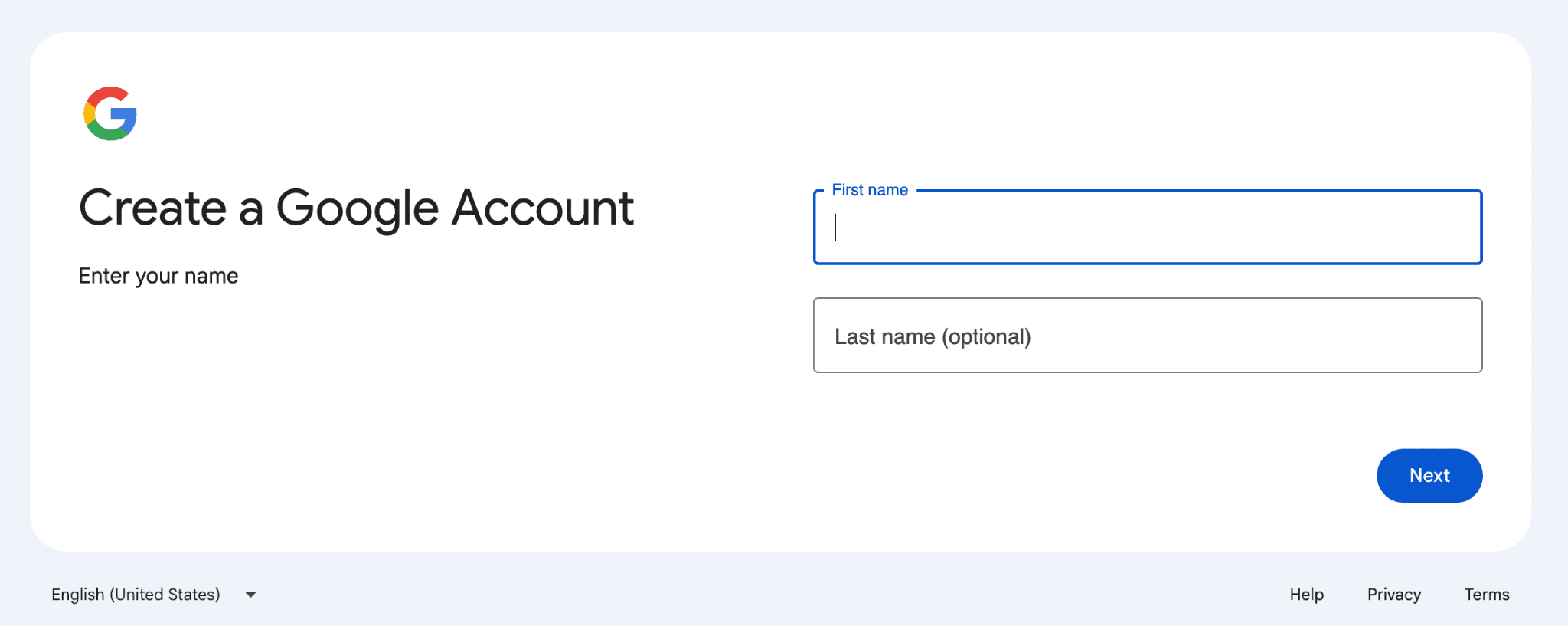
Start here: Create a Gmail account.
Follow these steps:
Go to the Google Account sign-in page.
Click Create account.
Choose whether the account is for personal use, a child, or work/business.
Enter your name, birthday, username, and password.
Add recovery information when prompted.
Choose a simple email address that is easy to read and share. For example, use a version of your name instead of random numbers or hard-to-remember words.
Use a unique password that you do not use on any other site. This matters because reused passwords are one of the easiest ways for attackers to access multiple accounts.
Step 2: Add Recovery Information
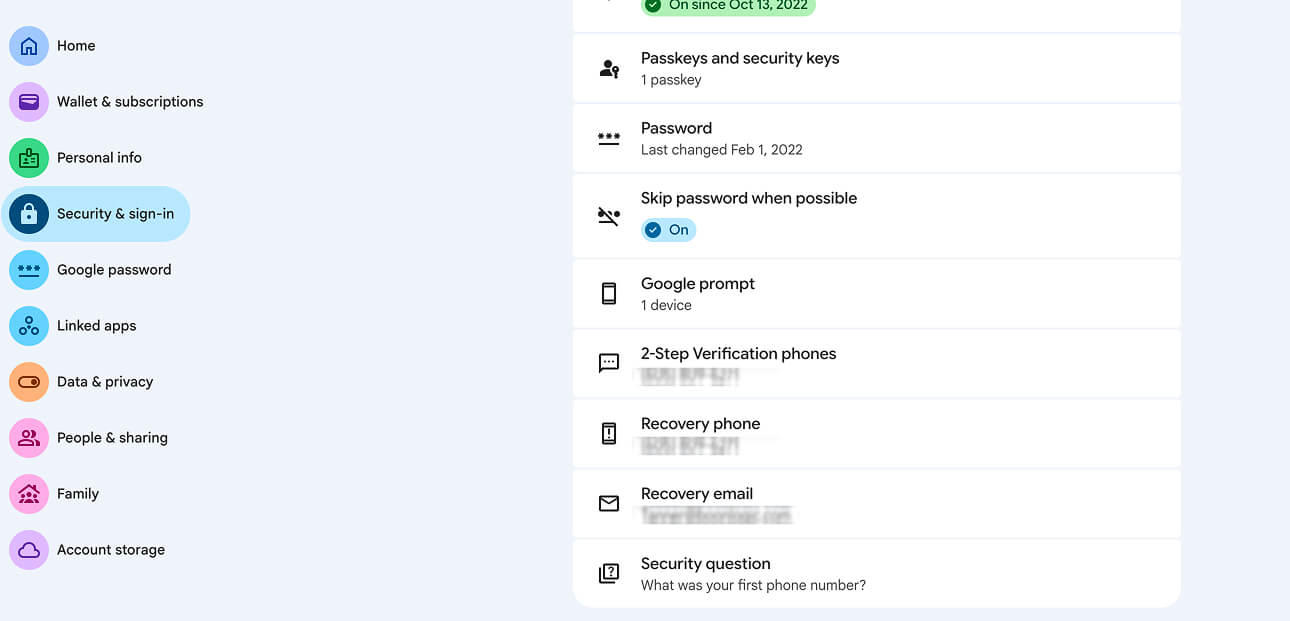
After the account is created, add a recovery phone number and recovery email address.
This helps you get back into the account if you forget your password, lose access to a device, or see suspicious sign-in activity.
To add your recovery information, access Google's security settings by completing the following steps:
Google Account > Security & Sign-in > Recovery Phone; Recovery Email
Step 3: Run Google’s Security Checkup
Every 90-days, run Google’s Security Checkup.
Google recommends taking a Security Checkup regularly to help keep your account safe.
Look for:
Unknown devices
Suspicious sign-ins
Old phones or laptops you no longer use
Apps with access to your Google Account
Security alerts you have not reviewed
Remove anything you do not recognize.
Step 4: Turn On 2-Step Verification
99% of cybersecurity attacks can be stopped by two-factor authentication. Don’t wait to activate 2FA in your account. Here’s how to get it set up….
To add 2FA to your account complete the following steps:
Google Account > Security & Sign-in > 2-Step Verification
Use at least one backup method, such as:
Google prompts
Backup codes
An authenticator app
A recovery phone number
A recovery email address
Save backup codes somewhere safe. They can help you access your account if you lose your phone.
Step 5: Review Your Privacy Settings
This next step is optional, but also highly recommended; especially if you value your privacy.
Go to Google’s Privacy Checkup.
Privacy Checkup lets you choose privacy settings that fit how you want to use Google services. Google says users can adjust what information is public and what data Google can use for recommendations and results.
Focus on these areas:
Web & App Activity
Review whether Google saves activity from apps, sites, and services. You can turn this setting on or off from your Google Account under Data & privacy.
Location History
Turn this off if you do not want Google saving location activity to your account.
YouTube History
Review whether YouTube search and watch history should be saved.
Ad Personalization
Google lets you manage ad personalization settings. If you turn personalized ads off, you may still see ads, but they will not be based on personal data associated with your Google Account.
Google also says it does not use content you create and store in Gmail, Drive, or Photos for ad purposes.
Step 6: Secure Gmail Settings
This is an additional optional step that you can follow if you want to further tailor your Gmail’s secure settings.
Open Gmail on a computer and go to:

Settings > See all settings
Then review these areas.
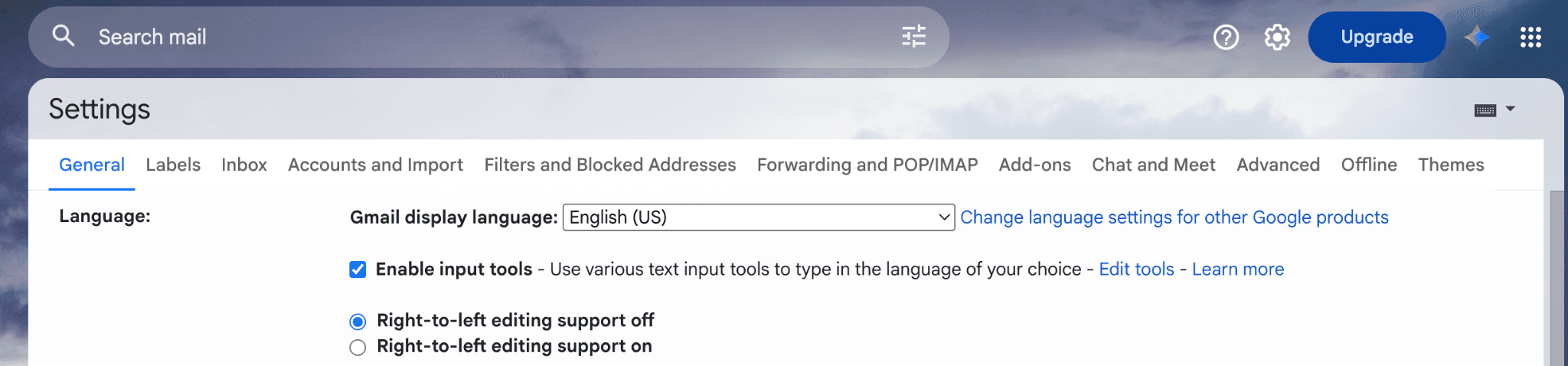
Forwarding and POP/IMAP
Click Forwarding and POP/IMAP. Make sure your email is not being forwarded to an address you do not recognize. Google’s Gmail forwarding instructions show this is where forwarding can be added or disabled.
Filters and Blocked Addresses
Check for suspicious filters. Remove filters that automatically delete, archive, forward, or hide messages unless you created them intentionally.
Spam and Phishing
Do not click suspicious links, unexpected attachments, fake login pages, or urgent payment requests. Use Gmail’s built-in options to report spam or phishing when a message looks unsafe.
Step 7: Protect Your Devices
Step 7 is an optional step as well. But, it’s important to point out that your Gmail account is only as secure as the devices used to access it. To help harden devices on your gmail account, complete the following steps:
Do these basics:
Keep your browser updated.
Keep your phone and computer updated.
Use a password manager.
Lock your phone and computer with a passcode or biometrics.
Avoid signing into Gmail on public or shared devices.
Sign out when using a device that is not yours.
Google includes software updates, strong passwords, and removing unnecessary apps or extensions in its account security guidance.
Understand Google Workspace Admin Controls
A free Gmail account is managed by the individual user. Google Workspace is managed by an organization.
That is the main difference.
With Google Workspace, admins use the Google Admin console to manage users, devices, apps, and data across the organization.
Admin controls can help you:
Add new users
Suspend users who leave
Remove old accounts
Manage security settings
Turn Google services on or off
Control app access
Manage mobile devices
Assign admin roles
Protect company or nonprofit data
Google says the Admin console is where admins manage Google services for people in an organization, and admin accounts have privileges to manage services for other users.
This matters when someone joins, leaves, changes roles, or needs access to sensitive files. Without admin controls, each person manages their own account separately. With Workspace, the organization can manage access from one place.
How Nonprofits Can Get Google Workspace at No Cost
Eligible nonprofits can apply for Google for Nonprofits and then activate Google Workspace for Nonprofits.
Start here: Google for Nonprofits
The basic process is:
Review Google for Nonprofits eligibility.
Request a Google for Nonprofits account.
Wait for verification.
Activate Google Workspace for Nonprofits.
Verify your domain.
Finish activation.
Google’s nonprofit instructions say to sign in to Google for Nonprofits with the organization’s administrative account, find Google Workspace for Nonprofits, and click Get Started.
If the organization is not already using Workspace, Google says it may be directed to start a 14-day trial at no charge, verify the domain, and complete nonprofit activation during the trial window.
Final Checklist
Before you start using the account heavily, complete this checklist:
Create the Gmail account.
Use a unique password.
Add recovery phone and email.
Run Google Security Checkup.
Turn on 2-Step Verification.
Save backup codes.
Review Privacy Checkup.
Turn off activity tracking you do not want.
Review ad personalization.
Check Gmail forwarding.
Review Gmail filters.
Remove old devices and apps.
Keep your browser, phone, and computer updated.
Use Google Workspace admin controls if managing an organization.
FAQs
Is Gmail free?
Yes. Personal Gmail accounts are free and include access to Google apps like Gmail, Drive, Docs, Calendar, and Meet.
Is Google Workspace free?
Usually no. Standard Google Workspace business plans are paid subscriptions. Eligible nonprofits may qualify for Google Workspace for Nonprofits at no charge.
Can I use Gmail for business?
You can use a free Gmail account for basic business communication, but Google Workspace is better if you need email at your own domain, admin controls, employee accounts, shared drives, and stronger organization-level security.
What is the difference between Gmail and Google Workspace?
Gmail is an individual email account. Google Workspace is an organization-managed platform that includes Gmail plus admin controls, user management, custom domain email, shared storage, security settings, and business collaboration tools.
How do I make Gmail more secure?
Use a unique password, turn on 2-Step Verification, add recovery information, run Security Checkup, remove unused apps, check forwarding settings, and keep your devices updated.
How do I make Gmail more private?
Run Privacy Checkup, review Web & App Activity, review Location History, review YouTube History, manage ad personalization, and remove third-party apps you no longer use.
Who qualifies for free Google Workspace?
Eligible nonprofits may qualify through Google for Nonprofits. Once verified, they can activate Google Workspace for Nonprofits if the product is available in their country.
Why do Google Workspace admin controls matter?
Admin controls help organizations manage users, devices, apps, access, and security settings from one place. This is especially useful when employees or volunteers join, leave, or need different levels of access.
What AI tools can Google Drive connect with?
Google Drive has built-in AI functionality (thanks to Gemini) and has the capability to play with your favorite AI tools, including ChatGPT, Claude, and Perplexity. To learn more, here's an article covering how to leverage AI tools in Google Drive.
You might also like
BLOG POST
Top 5 Best Co-Managed IT Services in the San Francisco Bay Area
Compare the top co-managed IT services in the San Francisco Bay Area, including pricing, pros, cons, help desk support, and cybersecurity.
BLOG POST
Top 5 Best Co-Managed IT Services in Los Angeles
Compare the top 5 co-managed IT services in Los Angeles, including pricing, support, cybersecurity, pros, cons, and best-fit use cases.
BLOG POST
Ultimate Guide to Co-Managed IT for Higher Education
Learn how co-managed IT works for higher education, including costs, cybersecurity, responsibilities, and pros and cons versus fully managed IT.