Home
Insight
Deep Dive: Does Google Drive Work With An AI Tool?


Karim Karawia
Published:
Yes, Google Drive can work with AI tools directly through Gemini, Google’s AI assistant for Workspace, and indirectly through outside tools that request access to Drive files or folders.
Gemini in Drive can help users interact with files in new ways, including summarizing files and folders, searching and retrieving files with AI Overviews, researching across multiple files, and organizing content. Google says Gemini in Drive requires an eligible Google Workspace or Google AI plan.
Third-party AI tools can also connect to Google Drive, but they usually need permission from the user or Workspace admin first. That permission determines what the tool can see, copy, edit, or manage.
What This Means for Everyday Users
For everyday users, AI can make Google Drive easier to use. Instead of opening ten documents to find one answer, you may be able to ask a question, summarize a folder, or pull important details from a file.
Common examples include:
Summarizing long Google Docs, PDFs, reports, and meeting notes
AI-powered search to find files using natural language
Extracting dates, names, numbers, tasks, and action items
Content extraction capabilities that can turn existing files into emails, outlines, or presentations
The biggest benefit is speed. AI helps users get to the information inside Drive faster.
How Google Drive Works With Google’s Built-In AI
Gemini in Google Drive
Gemini is Google’s built-in AI experience for Drive and other Workspace apps. Inside Drive, it can help users summarize files and folders, search for documents, synthesize information from multiple files, create audio or content overviews, and organize files.
This is useful when Drive has become a large library of scattered documents. Instead of manually clicking through folders, users can ask Gemini to help find, summarize, or compare information.
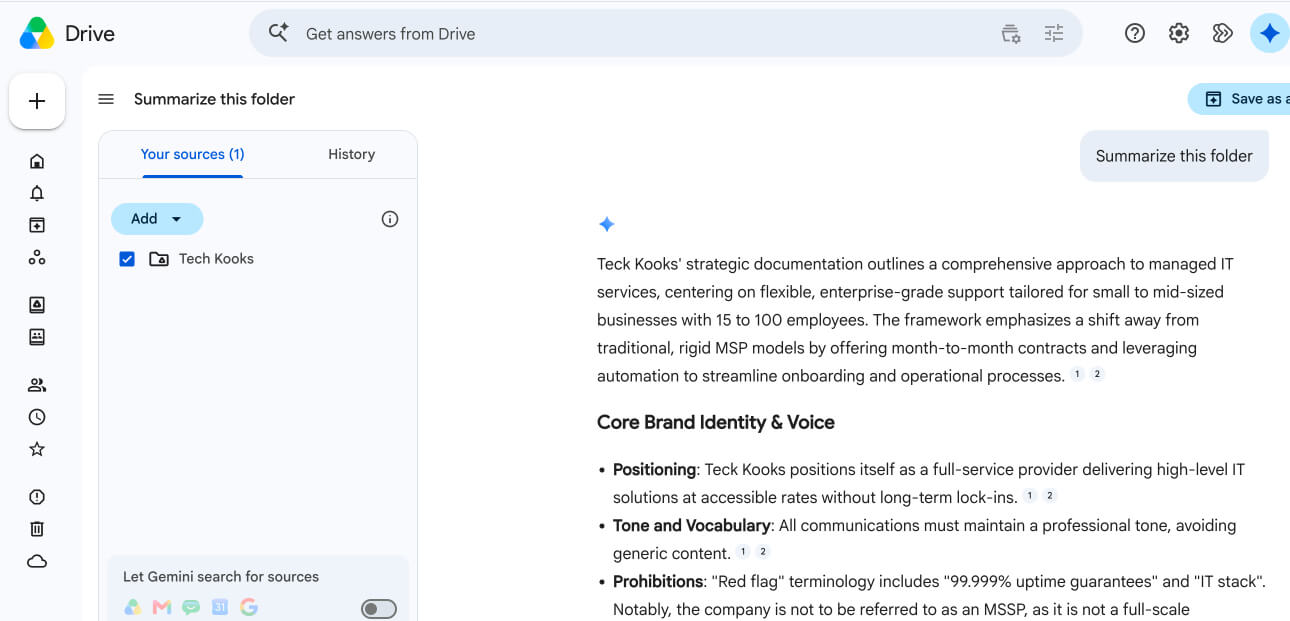
For example, a user could ask:
“Summarize this folder.”
“Find the latest proposal for the Acme project.”
“What are the main action items in these meeting notes?”
“Create a short brief from these documents.”
Gemini Across Google Workspace
Google Drive also connects with the rest of Google Workspace. Gemini can assist in apps like Gmail, Docs, Sheets, Slides, Drive, Chat, and Meet. Google describes Gemini in the Workspace side panel as a way to summarize, analyze, and generate content using insights from emails, documents, and other sources without switching apps.
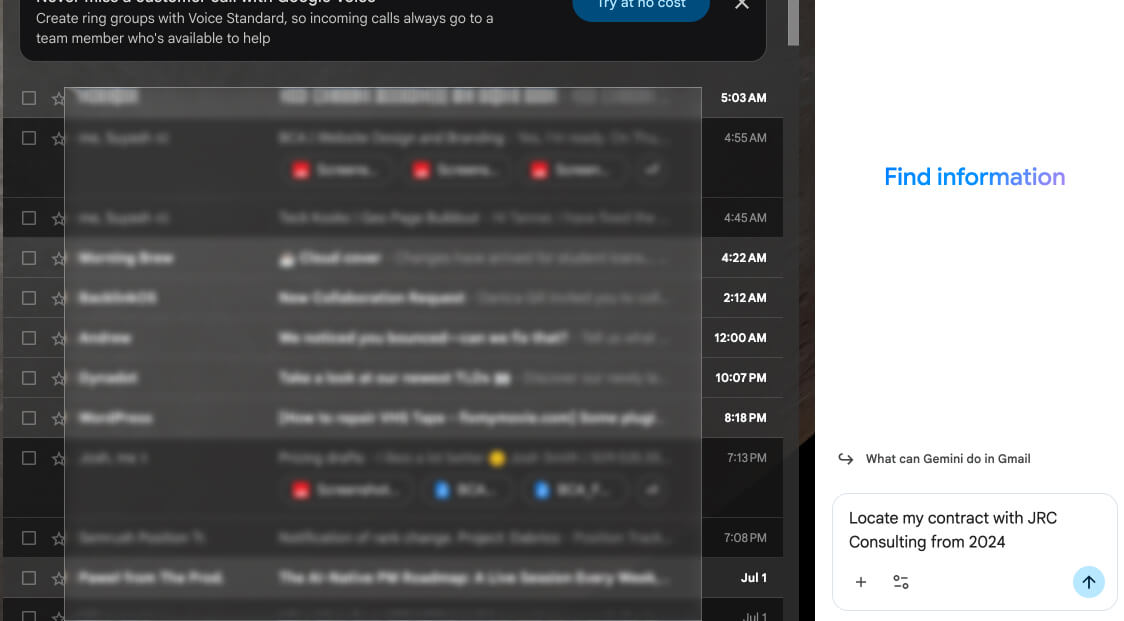
That matters because Drive is often where the source material lives. A document in Drive can become a draft in Docs, supporting data in Sheets can become a report, and project files can support an email or presentation.
AI Overviews and File Summaries
AI Overviews in Drive help users get faster answers from their files. Google says users can type natural language into Drive search to locate files across Workspace or get summary answers to questions.
This is especially helpful for long documents, PDFs, videos, and folders. The user does not need to open every file first. AI can help surface the most relevant information, then the user can verify the source file.
How Google Drive Works With Third-Party AI Tools
AI Tools Can Connect Through Google Permissions
Outside AI tools can connect to Google Drive through Google Account permissions. When an app asks for access, Google shows what data and services the app wants to use, along with the level of access it is requesting.
That access may be narrow or broad. Some tools may only ask to view selected files. Others may ask to view, copy, edit, create, or delete data.
This is why users should not approve Drive access casually.
Common Third-Party AI Use Cases
Third-party AI tools can use Google Drive for many business workflows, including:
Document search
Contract analysis
PDF summarization
Internal knowledge bases
Workflow automation
Chatbots trained on company documents
Client file review
Policy and SOP lookup
Proposal and report generation
For example, a company might connect an AI assistant to a folder of SOPs so employees can ask questions like, “What is our onboarding process?” or “Where is the current expense policy?”
Why Permissions Matter
Permissions determine what the AI tool can access.
A read-only connection is very different from a tool that can edit, create, or delete files. Google notes that linked apps can request different levels of access, including viewing and copying data or managing account data. Apps with management access may be able to edit, create, upload, or delete data.
For personal use, that can create privacy risk. For business use, it can create security, compliance, and client confidentiality risk.
Popular Third-Party AI Tools That Work With Google Drive
Google Drive can connect with many third-party AI tools. Some tools connect directly to Drive so users can search, summarize, or analyze files. Others connect through automation platforms that move Drive files into an AI workflow.
Here are a few common examples.
ChatGPT
ChatGPT can connect to Google Drive through ChatGPT apps with sync. Once connected, users can reference synced Google Drive links in ChatGPT, such as asking it to summarize a Google Doc link, as long as the file is synced and the user has permission to access it. OpenAI’s setup instructions say users connect Google Drive from ChatGPT settings under Apps, then authorize access to Google Drive.
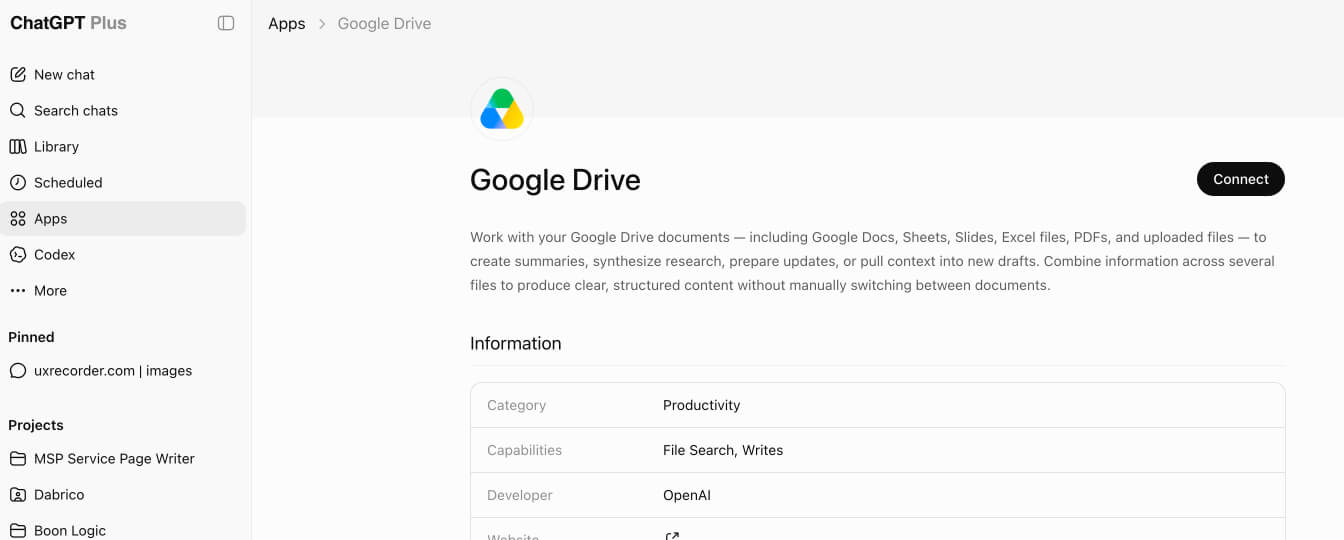
This can be useful for summarizing documents, asking questions about files, reviewing project materials, and turning Drive content into drafts, outlines, or reports.
Claude
Claude supports Google Workspace connectors, including Google Drive, Gmail, and Google Calendar. Anthropic says users can connect Google Drive to Claude so they can work with documents inside Claude, and the integration can sync updated Google Docs when they are added to a chat.

Claude can be useful for analyzing long documents, comparing multiple Docs, drafting content from source files, and reviewing written material. Anthropic also says Claude can create files and save them directly to Google Drive in supported plans.
Notion AI
Notion AI has a Google Drive AI Connector that lets users search Google Drive files from inside Notion. Notion says the connector supports Google Docs, Slides, Sheets, PDFs, and uploaded files like .docx, .pptx, .xlsx, and .csv. Setup happens through Notion settings and Google Marketplace authorization.
This is useful when a team uses Notion as a workspace but stores source documents in Google Drive. Users can ask Notion AI questions and pull answers from Drive without switching between tools.
Glean
Glean is an enterprise AI search and work assistant platform. Its Google Drive connector can index Drive content so employees can search and access documents they already have permission to view. Glean says its Drive integration can retrieve folders, Docs, Sheets, Slides, and supported Drive files, while also allowing actions like creating or updating Google Docs and Sheets.
This is best for larger companies that want Google Drive to become part of a searchable company knowledge base across multiple apps.
Guru
Guru can use Google Drive and Google Sheets as sources for its Knowledge Agents. Guru says connecting Google Drive makes it possible to search, preview, and link to Drive files directly in Guru, helping teams keep knowledge searchable and current.
This is useful for teams that want AI-powered answers from company documents, SOPs, policies, sales materials, and internal resources stored in Drive.
Zapier
Zapier can connect Google Drive, Google Docs, Google Sheets, and ChatGPT-style AI workflows without code. Zapier says Google Drive can be used to automate file management and trigger actions when new files or folders are added. It also offers integrations between Google Docs or Google Sheets and ChatGPT.
This is useful for automating repetitive tasks, such as summarizing a new document, creating a draft from a Google Sheet row, saving AI output back to Drive, or routing files into a workflow.
Make
Make is another automation platform that can connect Google Drive with AI tools like OpenAI, Azure OpenAI, ChatGPT, Whisper, DALL·E, and Sora. Make says users can build workflows where Google Drive triggers an AI action or where AI-generated content is saved back into Drive.
This is useful for more customized automations, such as transcribing audio files from Drive, summarizing PDFs, generating marketing assets, translating documents, or saving AI-generated files into specific Drive folders.
Which Type of Tool Should You Use?
The best tool depends on the workflow.
For simple document analysis, ChatGPT, Claude, or Notion AI may be enough. For company-wide search, tools like Glean or Guru are usually a better fit. For automation, Zapier or Make are more flexible because they can connect Google Drive to many other apps and trigger repeatable workflows.
Before connecting any of them, review the permissions carefully. A tool that only needs access to one folder should not be given full Drive access unless there is a clear reason.
What Can AI Tools Do With Google Drive Files?
Summarize Documents and Folders
AI can condense long Docs, PDFs, meeting notes, reports, and shared folders into shorter summaries. This is one of the most practical uses of AI in Google Drive because it saves users from reading every file manually.
For example, before a meeting, a user could summarize a client folder to review recent proposals, notes, contracts, and project updates.
Search Across Files Using Natural Language
AI can make Drive search feel more conversational. Instead of remembering the exact file name, users can search by intent.
For example:
“Where is the Q3 budget?”
“Find the proposal for the Acme project.”
“Which file mentions the new pricing model?”
“Show me the latest onboarding checklist.”
Google says Gemini in Drive can use natural language to find specific files and folders, including files shared across other Workspace apps.
Extract Key Information From Files
AI tools can pull specific information from Drive files, such as:
Dates
Names
Tasks
Deadlines
Numbers
Contract terms
Project updates
Meeting decisions
Action items
This is useful when the information exists in a document, but the user does not know where to find it.
Create New Content From Existing Files
AI can also turn Drive content into new material. For example, it can help create:
Emails
Outlines
Reports
Briefs
Presentations
SOPs
Project updates
Meeting agendas
Client summaries
Google Docs with Gemini can generate drafts based on files in Google Drive, which makes Drive a source library for new content.
Organize and Classify Files
AI can help clean up Drive by identifying file types, grouping related documents, suggesting folders, or classifying content. Gemini in Drive includes file organization features, and Google listed “Organize My Files in Drive” as generally available in 2026.
For teams with years of messy folders, this can make Drive easier to navigate.
What Types of Google Drive Files Can AI Tools Work With?
Google Docs
Google Docs are ideal for summarization, rewriting, research, and content generation. AI can review the content, identify themes, create drafts, or turn notes into polished copy.
Google Sheets
Google Sheets are useful for analysis, categorization, formulas, reporting, and data cleanup. AI can help identify patterns, summarize data, or turn raw information into a clearer report.
PDFs
PDFs are useful for summaries, contract review, policy analysis, and key point extraction. Accuracy depends on how the PDF was created. A clean text-based PDF is usually easier for AI to analyze than a scanned image PDF.
Images and Scanned Files
AI may be able to interpret images and scanned files, but quality matters. Blurry scans, handwritten notes, poor lighting, and unusual formatting can reduce accuracy.
Videos and Audio Files
AI tools may be able to summarize videos and audio files when transcripts, captions, or supported analysis features are available. Google Drive has also been expanding support around media previews and captions, but exact capabilities can vary by account type and feature availability.
Is It Safe to Connect Google Drive to an AI Tool?
Review the Permissions First
It can be safe to connect Google Drive to an AI tool, but only if the tool is trustworthy and the permissions make sense.
Before approving access, check:
What files or services the tool can access
Whether it can only view files or also edit them
Whether it can access one file, one folder, or the full account
Whether it can copy data to its own servers
Whether the tool uses your data for training
Whether you can revoke access later
Google says users can review or remove linked apps with access to Google Account data at any time. From the perspective of an IT service provider in Santa Clarita, CA, I generally recommend granting the lowest level of access possible. Avoid giving an AI tool access to your entire Google Drive when it only needs one file or folder.
Businesses should also require employees to receive approval before connecting new AI tools to company accounts. This reduces the risk of sensitive client, financial, or internal information being shared with an unapproved third party.
Avoid Giving Full Drive Access When It Is Not Needed
Do not give an AI tool full Drive access if it only needs one document or one folder. Use the narrowest permission that still allows the tool to do its job.
For example, a contract review tool may only need access to one contract folder. A company knowledge base may only need access to approved SOPs and policies, not HR records, finance files, or client contracts.
Be Careful With Sensitive Business Data
Google Drive may contain sensitive files such as medical records, financial records, official reports, presentations, contracts, HR documents, legal files, client data, passwords, and internal strategy documents. Google specifically notes that Drive may contain sensitive uploaded files, including medical records, financial records, official reports, and presentations.
Businesses should be especially careful before connecting AI tools to folders with confidential information. AI tools can improve how you access and use your files, but they do not replace a reliable backup. Learn how to automatically back up Google Drive to an external hard drive to protect important files from accidental deletion, syncing problems, or account access issues.
Use Admin Controls for Business Accounts
Google Workspace accounts give businesses more control than personal Google accounts. Admins can manage access to Gemini, control some AI features, and apply existing Workspace protections such as data handling controls and Data Loss Prevention.
Admins and content owners can also affect what Gemini can access. Google says Gemini has the same access to Workspace data as the user, meaning it can only access Drive files that are shared with that user, unless additional restrictions apply.
Google Drive AI for Personal Accounts vs Business Accounts
Personal Google Accounts
Personal users may have access to some AI features depending on their Google plan, region, and feature availability. These users should be careful when linking outside tools because they are usually responsible for reviewing permissions themselves.
If you are interested in getting started in Google for free, check out our article on how to set up a Gmail account that is private and secure at no cost
Google Workspace Accounts
Workspace accounts are better suited for businesses because they include stronger administrative controls. A company can manage user access, sharing rules, app permissions, security policies, and AI availability.
This matters because business Drive accounts often contain client records, contracts, employee files, financial data, and regulated information.
Why Businesses Should Be More Careful
Businesses need to think beyond convenience. They also need to consider compliance, data retention, client confidentiality, employee access, and whether the AI vendor can store or reuse company data.
Google says Workspace data is not used to train or improve the underlying generative AI models that power Gemini and other systems outside Workspace without permission. It also says Gemini in Workspace apps uses Workspace content to provide responses, but does not use that content to train or improve Gemini or other generative AI models.
That is useful for Gemini. But every third-party AI tool has its own privacy policy, retention rules, and security model.
Best Ways to Use AI With Google Drive
Summarize Large Folders Before Meetings
Use AI to prepare for client calls, internal meetings, audits, or project updates. A folder summary can help users quickly understand what changed, what matters, and what needs attention.
Turn Drive Into a Searchable Knowledge Base
AI can make Drive more useful as a company knowledge base. Teams can ask questions across policies, SOPs, proposals, reports, meeting notes, and project documents.
This is one of the best use cases for companies with a lot of information stored in Drive but no easy way to search it.
Automate Repetitive Document Tasks
AI can help automate document-heavy work, such as:
Creating summaries
Extracting data
Formatting reports
Routing files
Drafting updates
Creating follow-up tasks
Google Workspace Studio also supports AI-assisted automations across Workspace, allowing users to build flows for routine tasks.
Improve Team Productivity
The biggest productivity gain comes from reducing time spent searching, reading, and reformatting information. AI helps employees move from “Where is the file?” to “What do we need to do next?”
Limitations of Using AI With Google Drive
AI May Not Read Every File Perfectly
AI tools may struggle with poor scans, messy folders, unusual formatting, unsupported file types, duplicate documents, or unclear file names. Clean file structure still matters.
AI Can Misinterpret Information
AI summaries should be verified. This is especially important for numbers, contract terms, legal language, financial data, healthcare information, and business-critical decisions.
AI can speed up review, but it should not replace human judgment.
Access Depends on Permissions
AI tools usually cannot access files unless the user or app has permission to view them. For Gemini in Workspace, access is tied to the user’s Workspace permissions and any admin or content owner restrictions.
That is good for security, but it also means results may be incomplete if the right files are not shared.
Not Every AI Tool Handles Privacy the Same Way
Gemini in Google Workspace has Google’s Workspace protections, but third-party tools have their own policies. Before connecting one to Drive, review its privacy policy, security disclosures, data retention rules, and model training policy. Google also warns that once an outside app copies data to its own servers, that data is subject to the app’s own security and privacy practices.
Final Answer: Does Google Drive Work With AI Tools?
Yes, Google Drive works with AI tools.
The simplest option is Google’s built-in Gemini experience, which can summarize files, search Drive with natural language, analyze folders, and help create new content from existing Workspace files. Third-party AI tools can also connect to Drive, but they require permissions that should be reviewed carefully.
For personal users, AI can make Drive faster and easier to use. For businesses, AI can turn Drive into a searchable knowledge base, automate document workflows, and improve productivity.
However, businesses should be careful about how AI tools are connected to Google Drive. Sensitive files, client records, contracts, HR documents, financial data, and internal policies should not be exposed to the wrong app or user account. This is where working with an MSP can be helpful. A managed IT provider can review your Google Workspace settings, control app permissions, secure shared drives, limit unnecessary access, and help your team use AI to improve productivity without creating avoidable security risks.
You might also like
BLOG POST
Top 5 Best Co-Managed IT Services in the San Francisco Bay Area
Compare the top co-managed IT services in the San Francisco Bay Area, including pricing, pros, cons, help desk support, and cybersecurity.
BLOG POST
Top 5 Best Co-Managed IT Services in Los Angeles
Compare the top 5 co-managed IT services in Los Angeles, including pricing, support, cybersecurity, pros, cons, and best-fit use cases.
BLOG POST
Ultimate Guide to Co-Managed IT for Higher Education
Learn how co-managed IT works for higher education, including costs, cybersecurity, responsibilities, and pros and cons versus fully managed IT.